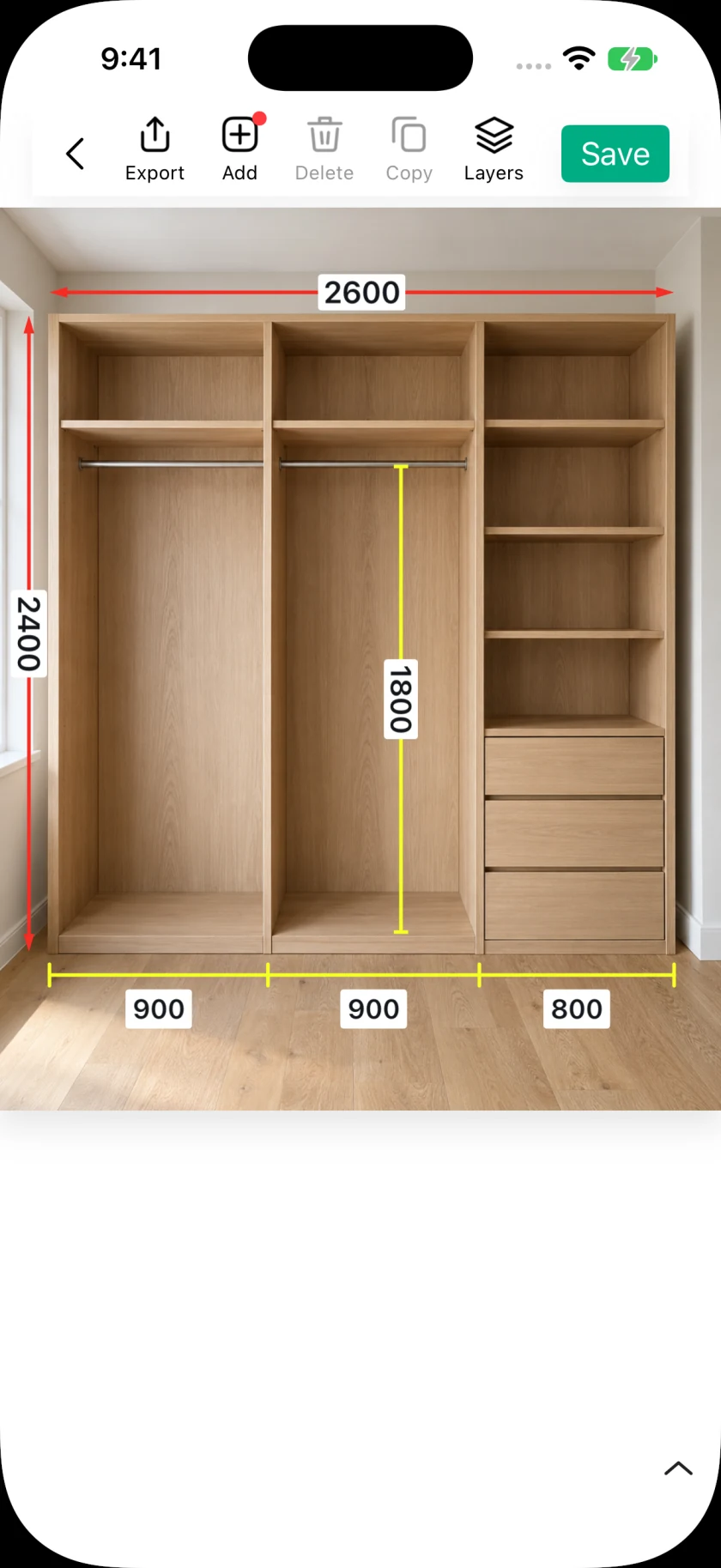
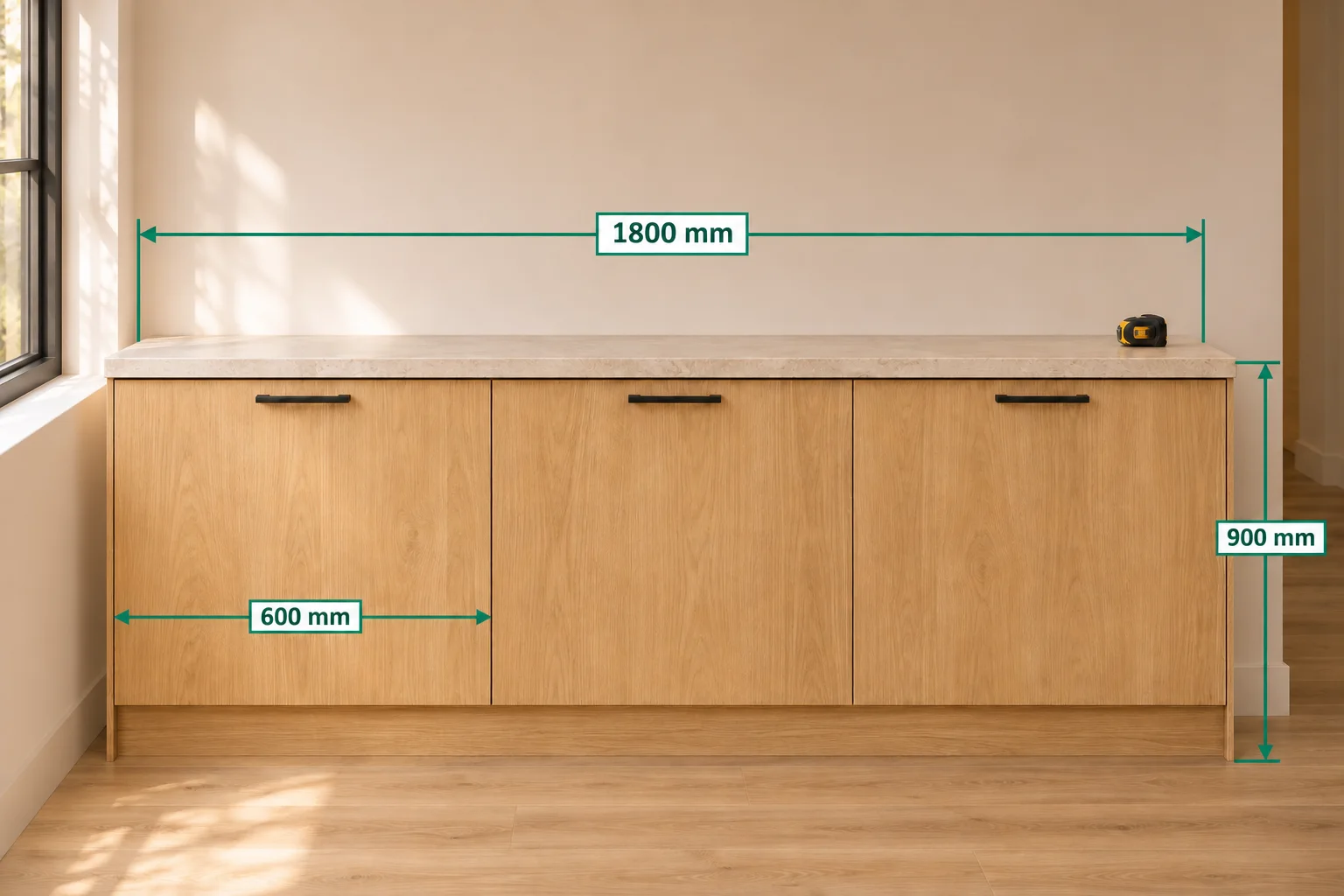
A PDF brings several annotated views into one file that a client or installer can open without editing your project. In SizeSnap, a document can contain multiple photo pages, so you can keep an overview and its details together. Review the saved annotations first, then export the document in the format that suits the recipient. Keep a SizeSnap project copy when you expect to make changes later.
Step by step
- 01
Group the right photos together
Create or open a document for the job and add the relevant images or imported PDF pages. Give the document a recognizable name. Arrange the record so the overview and detail pages can be understood without searching through a separate conversation.
- 02
Save and review each page
Check endpoints, values, units, text contrast, and missing notes in the editor. Save your work before exporting. Read the record at a normal viewing size; a label that looks fine while zoomed in may be too small for someone reading the full page.
- 03
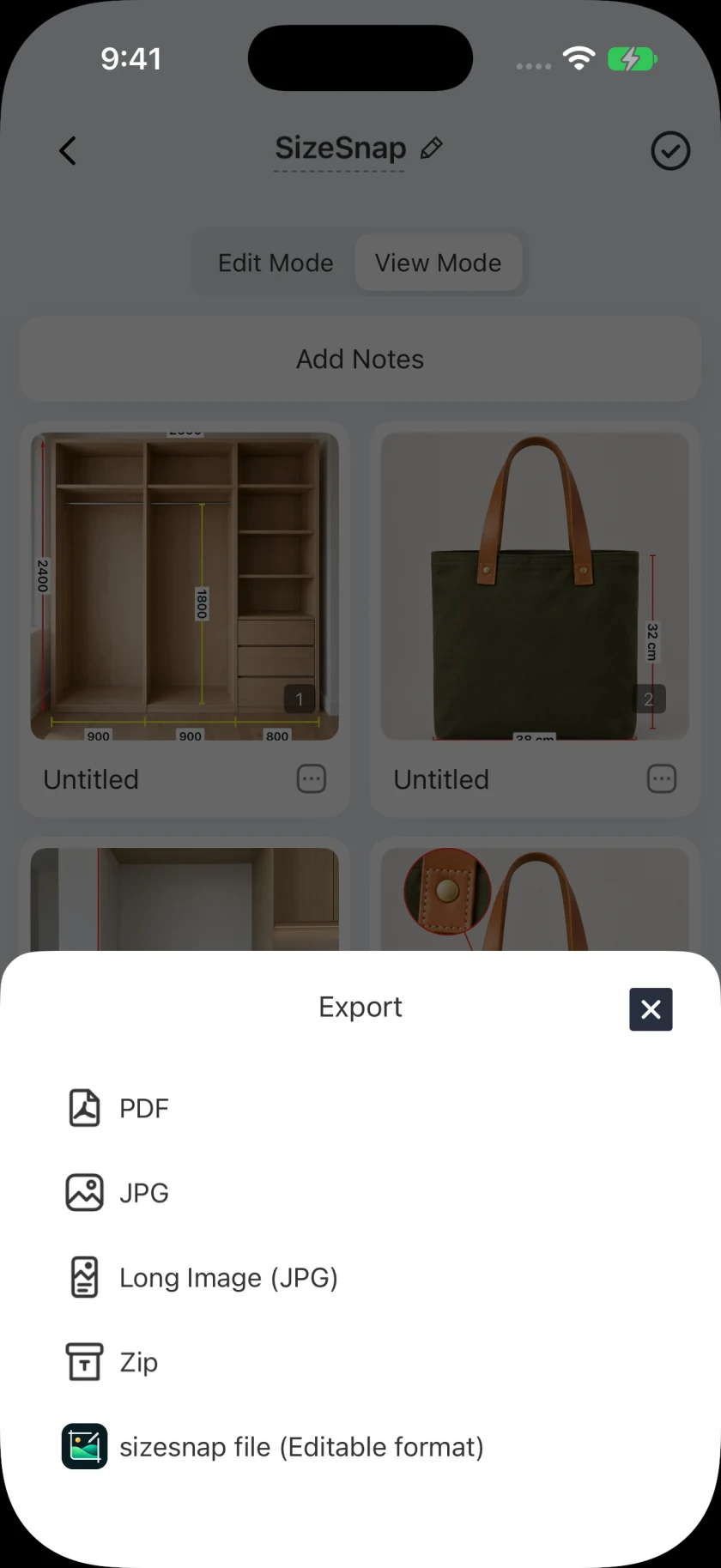
Choose PDF from the export menu
Open the document's export action and select PDF. SizeSnap generates a file from the document's saved photo pages. Wait for generation to finish, especially for a document with many high-resolution images, and use the system share sheet to save or send the file.
- 04
Open the exported file once
Check the resulting PDF's page order and readability before sending it on. Make sure the recipient can tell what the dimensions describe and which units apply. If a detail is hard to see, revise the source page or add a separate close-up and export again.
- 05
Choose editable files when needed
Use JPG for a quick single-image reference. Use a compatible SizeSnap project file to preserve editable annotations and supported media. A PDF or JPG is a static handoff, so it does not contain playable audio or video annotations.
Good to know
Understand the export limits
Free batch export supports up to five documents at a time; pages inside one document do not count toward that document limit. Folder export, larger document batches, and long-image export require Pro. Watermark removal also requires Pro.
Sharing and synchronization serve different needs
Send an exported file when someone needs a copy. Pro iCloud sync keeps projects available across your own devices using the same iCloud account; it is not a shared live editing session with a client or crew.