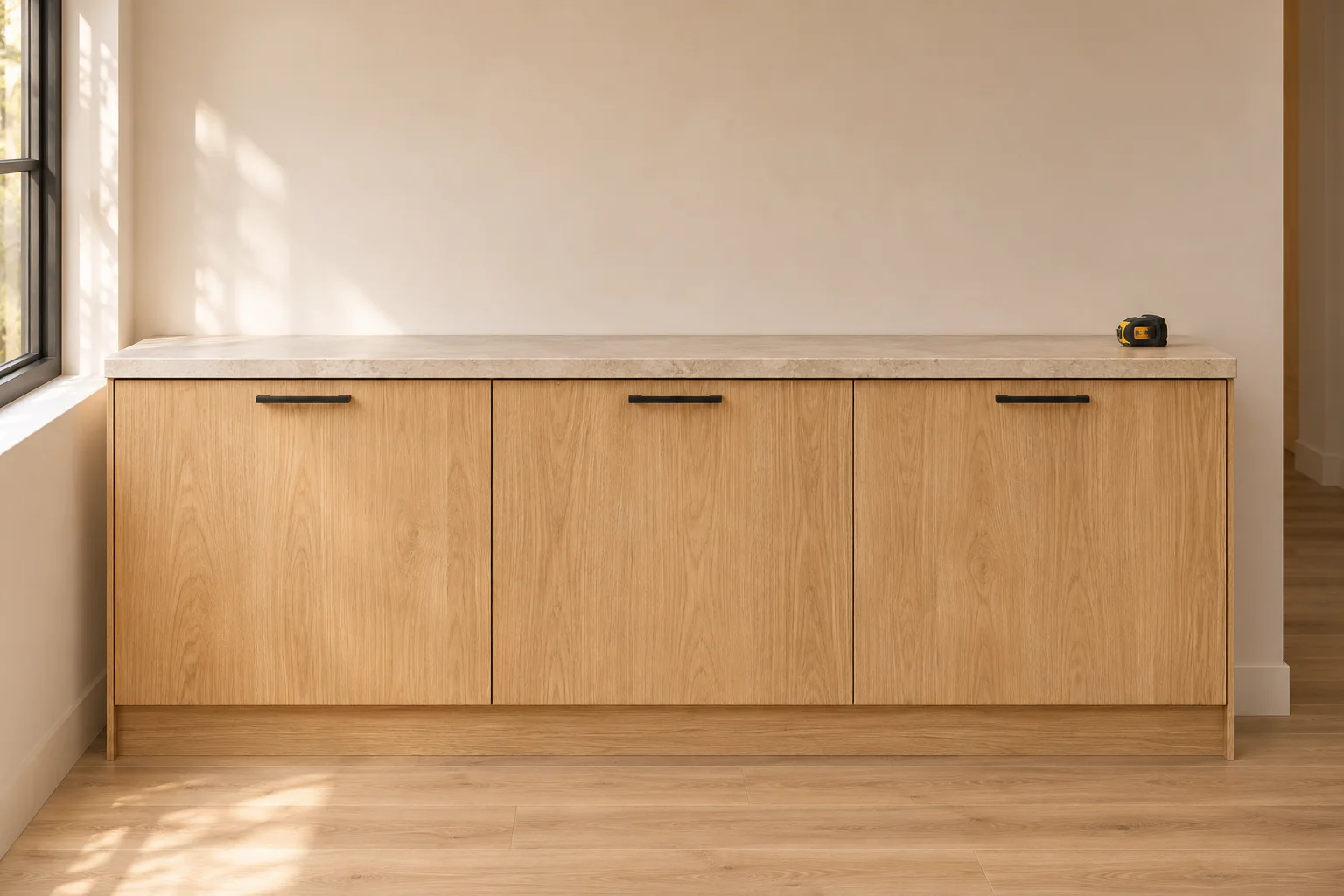
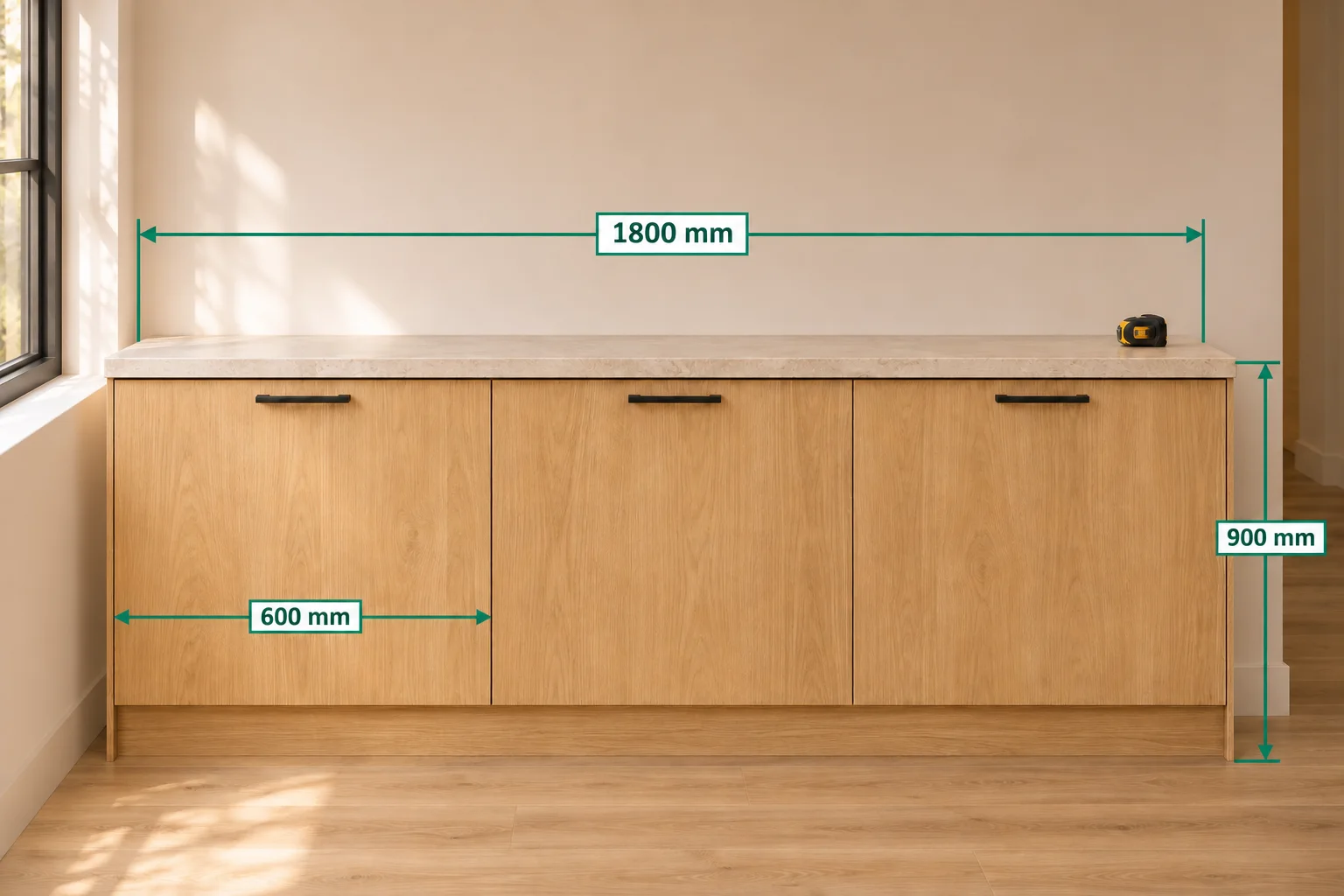
A reference scale connects a length drawn on an image to a real length you already know. SizeSnap can then calculate other ordinary dimension values from their line lengths on that same page. This is a proportional estimate, not automatic recognition of an object's size. Use a suitable image and an independently measured reference, then verify important results with a physical measurement.
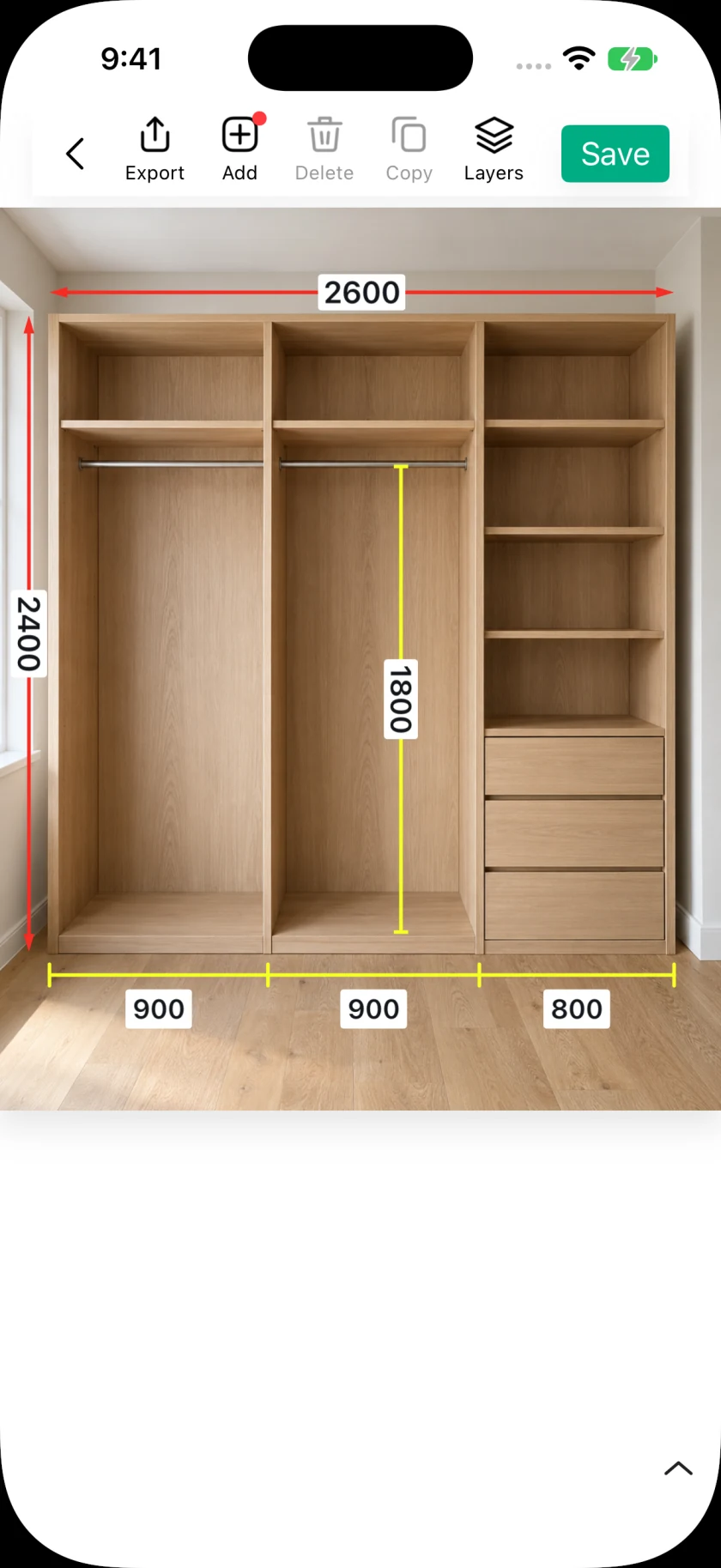
Step by step
- 01
Choose a suitable image and reference
Use a straight-on view of the surface you want to compare. The reference and the target lengths should lie on the same plane and at a similar depth. A tilted view or objects at different depths can change their apparent proportions even when the real lengths match.
- 02
Place the reference dimension carefully
Add an ordinary dimension across the known span and align both endpoints. Select that dimension and use the reference-scale controls in its length editor to set it as the reference. Enter the known value with a unit, such as 100 cm or 4 in.
- 03
Add the lengths you want to compare
Create other dimensions on the same page and keep them in automatic mode. SizeSnap calculates each value as the reference's real length multiplied by the target line length, divided by the reference line length. A page uses one reference scale.
- 04
Review automatic and manual values
Moving an automatic dimension's endpoints recalculates its displayed value. Editing its text directly switches that dimension to a manual value. The reference endpoints are locked by default; use the lock control when you intentionally need to adjust them.
- 05
Verify before sharing
Compare a second known span against the calculated result to spot poor calibration or perspective distortion. Save the editable project and describe which values were estimated from a reference when exporting a record for someone else.
Good to know
One scale cannot solve every perspective problem
The calculation compares lengths in the image. It does not recover a complete 3D scene or automatically correct perspective. Small endpoint errors are more noticeable with a short reference, so choose a clear, reasonably long reference when possible.
Reference-scale access
Creating a new reference scale is a Pro feature with limited free uses for non-members. Existing scales can still be managed, including changing the reference or switching a dimension between automatic and manual values. Follow the access information shown in your installed version.