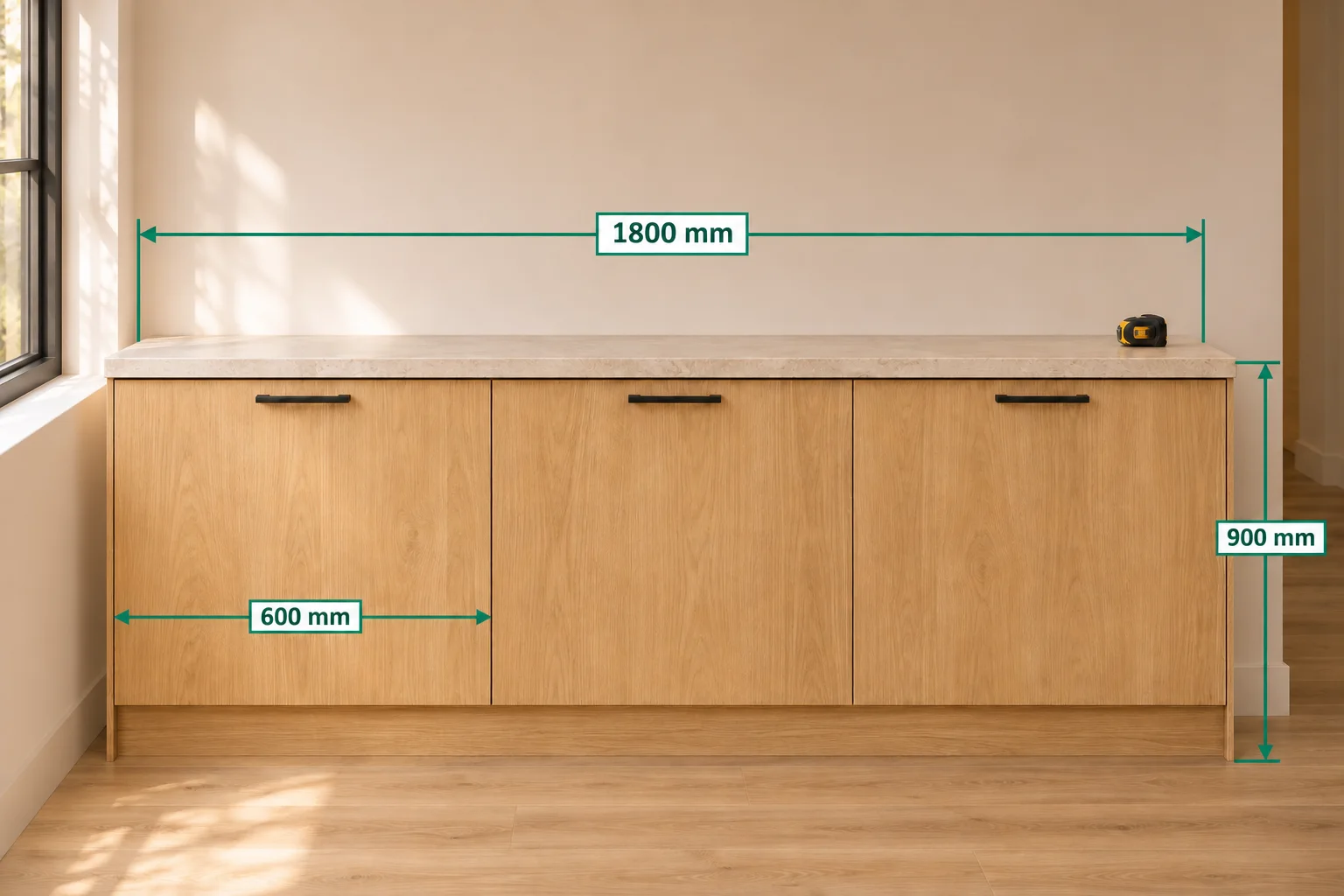
A compatible Bluetooth laser meter can send a measured distance to SizeSnap so you do not need to retype every reading. The app receives supported distance data and can fill the selected length annotation or its input field. Support depends on a device's Bluetooth protocol and firmware, not only the brand printed on it. The SNDWAY SW-DB50 has a documented physical-device test; other protocol profiles are not blanket compatibility guarantees.
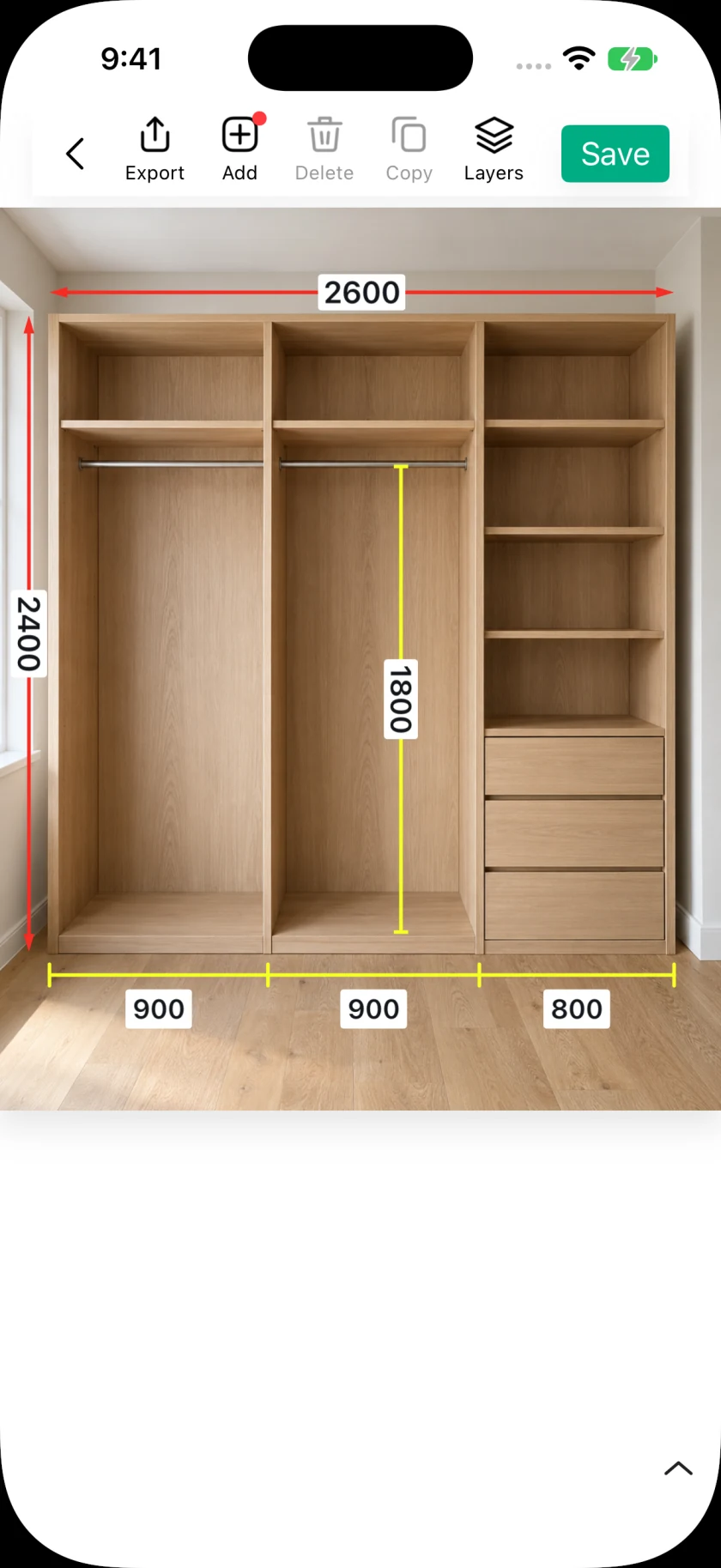
Step by step
- 01
Prepare the meter and the app
Enable the meter's Bluetooth measurement mode according to its instructions. Open a photo in SizeSnap and use the editor's meter button. Allow Bluetooth access when prompted. A device appearing in a scan does not by itself mean that its distance data can be decoded.
- 02
Select and connect your device
Search for nearby devices and choose the meter you intend to use. Wait until the app reports a ready connection. Automatic mode handles known combinations; manual modes are available for applicable protocols. Choose a mode based on your device rather than assuming every model of a listed brand works.
- 03
Check a fresh reading
Take a measurement on the meter itself and compare the value received by SizeSnap with the meter's screen, including the unit. The app does not remotely trigger the laser. Use the device detection and adaptation tools if it connects but does not deliver a correct reading.
- 04
Fill the intended annotation
Return to the editor and select the length annotation you want to update. A fresh reading can fill an empty value; replacing an existing value asks for confirmation. You can also choose a recent reading from the connected input's history strip. Check the target before accepting it.
- 05
Save the record and report specific issues
Save the project after reviewing the filled dimensions. If a reading is missing or inconsistent, record the exact meter model and the issue in the in-app adaptation flow. This is more useful than reporting only a brand name.
Good to know
Use the meter's own measurement rules
Confirm its front or rear reference point, chosen unit, and measurement mode. SizeSnap receives distances; an incoming length is not applied to an angle, slope, or area value. Verify important numbers on the device before using them for a job.
Connection and history behavior
Recent readings are kept locally, with up to 20 entries. Their history is separate from iCloud project sync. The app disconnects in the background and attempts to restore the connection on return; make and verify a fresh reading after reconnecting.