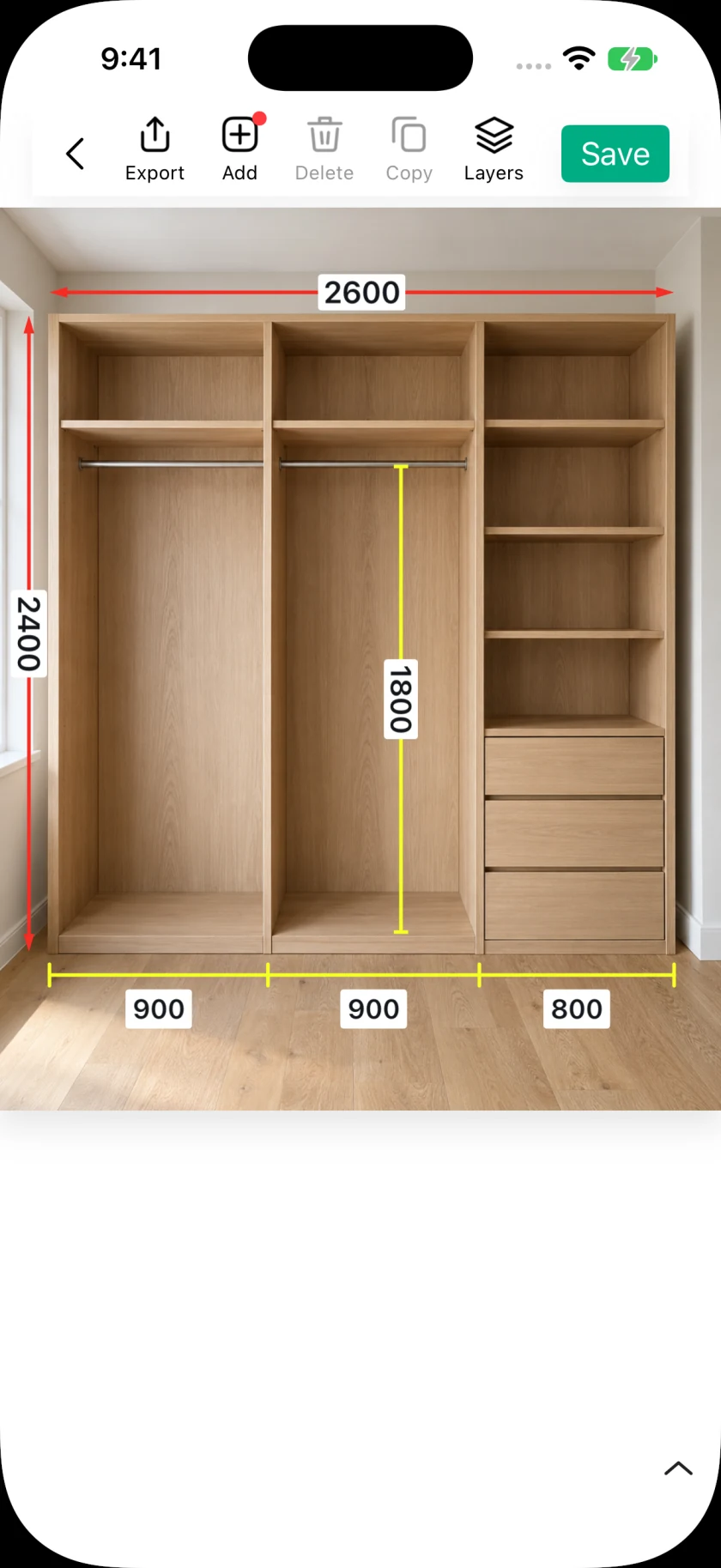
SizeSnap's AR measurement works with the live scene in front of a supported iPhone or iPad. You select two points in the camera view, review the resulting distance, and apply it to a dimension annotation. It is a separate workflow from typing a measured value onto an existing photo or estimating a length from a known reference. AR results are approximate and depend on tracking and the scene.
Step by step
- 01
Choose the dimension you want to fill
Open your image in the editor, add or select an ordinary dimension, and use its AR measurement control. The app checks whether your device supports AR world tracking. An unsupported device cannot use this live camera workflow.
- 02
Allow the camera and read the first-use notice
Review the precision notice before continuing and allow camera access. If access was previously denied, enable it in system settings before trying again. The camera view needs the real object or space; it does not analyze an old photo to recover an unknown physical size.
- 03
Let tracking settle and mark the start
Move the device slowly so the app can establish the scene. Follow the on-screen tracking guidance and aim the reticle at a clearly defined starting point. Confirm the point when the target is stable, rather than selecting it while the view is still searching.
- 04
Mark the end and review the distance
Aim at the second endpoint and confirm it once the target is stable. Review the distance shown in the camera view. Reset and repeat if either endpoint was misplaced or the result looks inconsistent with the space you are measuring.
- 05
Apply and check the annotation
Confirm the completed measurement to return to the editor. SizeSnap formats the AR distance in centimeters and fills the selected dimension. Check the annotation's placement and value, add any context needed, and save the project before sharing.
Good to know
Use an appropriate accuracy check
Lighting, visible surface detail, movement, and endpoint placement can affect AR tracking. Check critical dimensions with a suitable physical measuring tool. Do not treat an approximate camera measurement as a guarantee of installation clearance or fabrication accuracy.
Keep the measurement session in the foreground
Returning from the background resets the AR measurement so the scene can be tracked again. Re-establish the points instead of assuming an earlier target is still valid. Available controls can differ with the installed version and supported hardware.